
How Do I Use the Admin Menu to Navigate Through Back Office?

● To search for orders, click the Orders option.

● Autoship - To search for and manage autoships, click the Autoship option.

● Administration menu options:
● To manage website content, click the Manage Website option.
● To create a note, click the Create Note option.
● To search for and edit notes, click the Search for Notes option.
● To view payments, click the View Payments option.
● To manage product returns, click the Manage Returns option.
● To view shipping files, click the Shipping and Fulfillment option.

● Commissions menu options:
● To view the Unilevel downline tree for a distributor, click the View Unilevel Downline option.
● To view the Binary downline tree for a distributor, click the View Binary Downline option.
● To view weekly commission forecasts, click the View Weekly Commission Forecasts option.
● To view weekly commission payments for a distributor, click the View Weekly Commission Payments option.
● To view monthly commission payments for a distributor, click the View Monthly Commission Payments option.
● To view quarterly commission payments for a distributor, click the View Quarterly Commission Payments option.
● To view yearly commission payments for a distributor, click the View Yearly Commission Payments option.
● To view a commission period, click the View Commission Period option.
● To search for commission adjustments for a distributor, click the Manage Commission Adjustments option.
● To search for volume adjustments for a distributor, click the Manage Volume Adjustments option.
● To create a commission adjustment for a distributor, click the Create Commission Adjustment option.
● To create a volume adjustment for a distributor, click the Create Volume Adjustment option.
● To export commissions, click the Export Commissions option.

● Products menu options:
● To manage products, click the Manage Products option.
● To manage product types, click the Manage Product Types option.

● Reports - To generate reports, click the Reports icon.

● Account Info menu options:
● To create a new customer account, click the Create New Customer Account option.
● To create a new distributor account, click the Create New Member Account option.
● To search for and access an account, click the Search for Account option.
● To access an account, click the Access Account option.
● Email Broadcast - To create an email broadcast, click the Email Broadcast icon.

● Resource Center - To update the Resource Center content, click the Resource Center icon.
How Do I Sign In as the Account Holder?
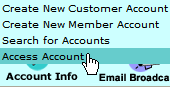

1. Access the account:
a. Click Access Account from the Account Info menu.
b. Enter the distributor's identification number in the To manage an account, enter an ID # text box.
c. Click the Go button.

2. Now that you are signed in as the distributor (Current Account), the Back Office Menu displays the options available to the distributor.
● To place an order, click the Place Order option on the Back Office Menu.
● To manage autoships, click the Manage Autoship option on the Back Office Menu.
● To view the distributor's order history, click the View Order History option on the Back Office Menu.
● To view the distributor's commissions history, click the Commissions option on the Back Office Menu.
● To view the distributor's downline, click the View Downline option on the Back Office Menu.
● To generate reports for the distributor, click the View Reports option on the Back Office Menu.
● To go to the distributor's Welcome/Manage Account screen, click the Manage Account option on the Back Office Menu.

3. To exit the account and return to the Admin Menu, click the Exit Account button.

NOTE: After you exit the account, the Admin Back Office menu returns and the Current Account display disappears.